
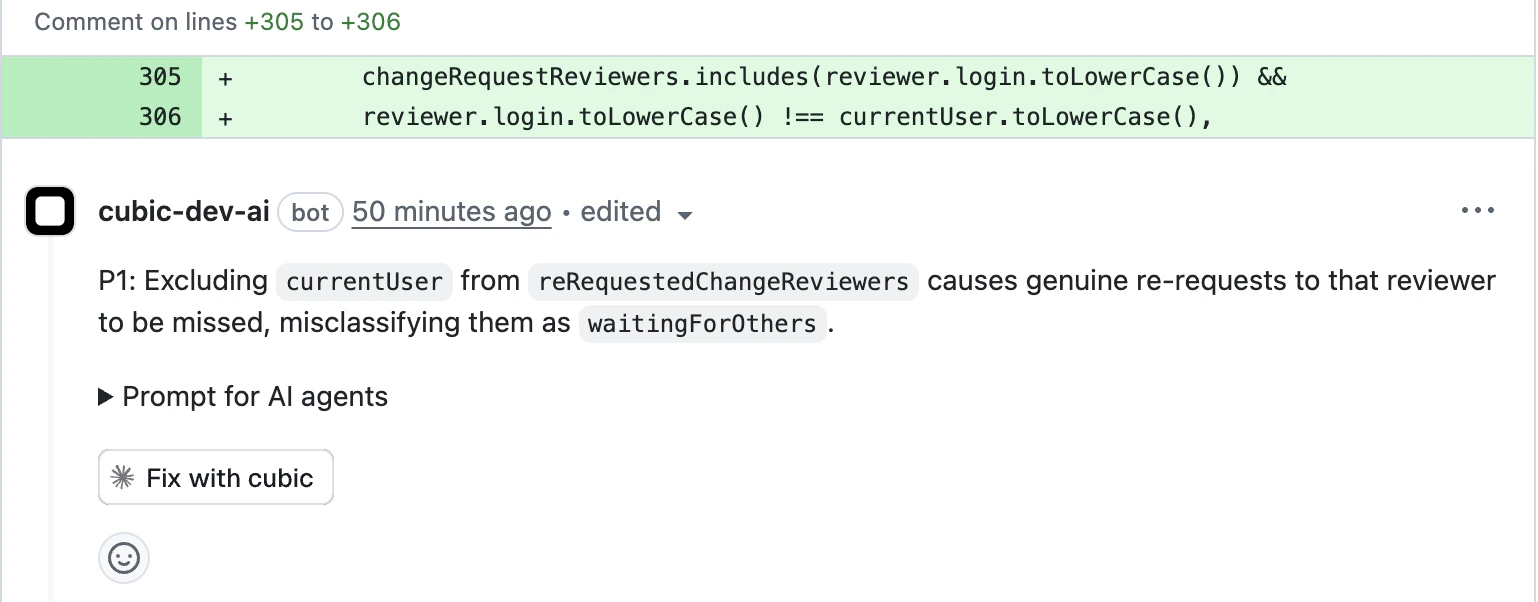
How it works
When cubic identifies an issue in your code, you can request an AI-generated fix that:- Analyzes the issue - Reviews the problem and relevant context
- Generates a solution - Creates a targeted fix addressing the specific issue
- Applies the fix - Pushes commits to your PR branch by default, or opens a fix PR when requested
- Preserves review flow - Lets you review the changes before merging into your main PR
By default, cubic pushes commits directly to your PR branch. To override, include “open a fix PR”
in your request. If cubic opens a fix PR, it targets the branch of your original PR, not the main
branch.
Triggering fixes
There are two ways to request an AI fix:Tagging cubic in Github or cubic
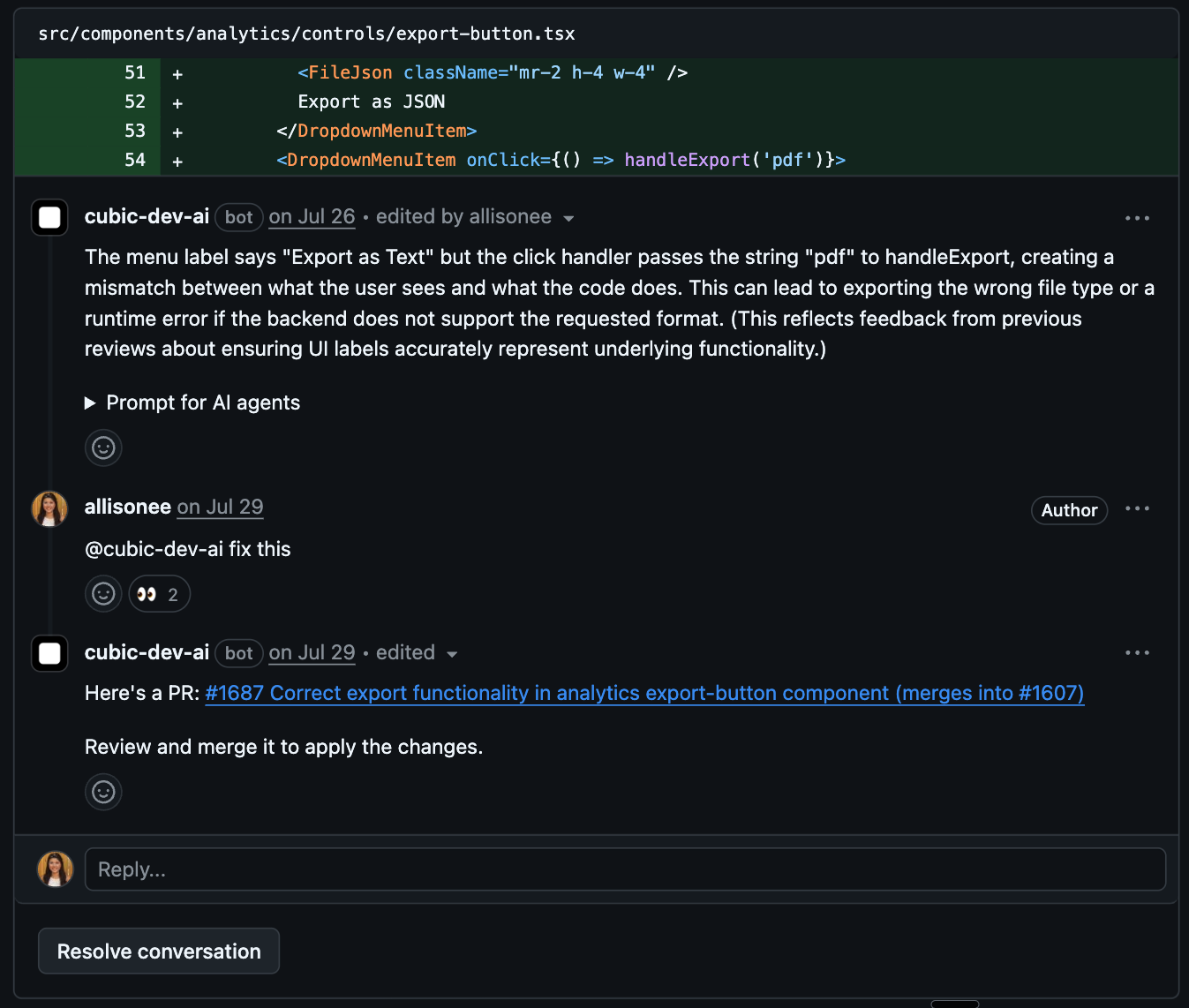
- “@cubic fix this issue”
- “@cubic-dev-ai can you generate a fix for this?”
- “@cubic please fix the type error mentioned above”
cubic only treats the current comment as permission to edit code when that comment explicitly tags
cubic.
@cubic, @cubic-dev-ai, and other supported cubic tags work. Replying inside a
cubic-started thread without a fresh tag is treated as discussion, feedback, or questions, not
authorization to push changes.Using the fix button in cubic
For inline review comments, click the Generate fix button in the comment actions menu. Dashboard-triggered fixes commit directly to the PR’s branch by default. This is available when:- The comment identifies a specific issue in a file
- The comment includes file and line context
- Your installation has the fix feature enabled
What to expect
Fix generation process
- Acknowledgment - cubic reacts with 👀 and comments
- Analysis - The AI analyzes the issue and surrounding code
- Delivery - cubic pushes commits to your PR branch by default, or opens a fix PR if requested. The fix runs in an isolated sandbox in the background (typically 1-3 minutes).
- Notification - cubic updates the original comment with the commit or PR details
Follow a fix
Every run of cubic’s coding agent opens as a fix session in cubic: runs started with Fix with cubic, Fix all, or Generate fix, auto-fix runs, requests made by tagging@cubic in a comment, and fixes from codebase scans. Fixes handed off to Cursor cloud agents don’t open a fix session; you follow them in Cursor. Fixes in cubic code (cubic.dev/code/fix) lists your fix sessions, grouped by repository. cubic’s comment on the pull request links to the run’s fix session, where you can follow the agent’s steps and see the result; a codebase-scan fix links to it from the scan. Click Stop fix to stop a run in progress.
Fix sessions are read-only. You can’t send the agent follow-up requests or change its instructions while it runs. To ask for more changes, request a new fix or leave another @cubic comment.
Links to the old progress page open the run’s fix session. Runs that finished before fix sessions were added don’t have one, so their links show Run not found.
Reviewing changes
If cubic opens a fix PR, it includes:- Descriptive title - AI-generated title explaining what’s being fixed
- Targeted changes - Only the code needed to address the specific issue
- Original context - Reference to the original PR and issue comment
- Clean diff - Easy to review changes in isolation
If a fix PR is created, you can test the changes locally by checking out the fix branch before
merging.
Best practices
Tips for using AI fixes
- Review carefully - Always review AI-generated code before merging
- Test locally - Verify the fix works as expected in your environment
Limitations
- Complex architectural changes may require manual intervention
- Fixes are scoped to the specific issue identified
- Some issues may require broader refactoring beyond a single fix
- Follow-up changes are not yet supported
- Generated PRs or pushed commits run through your existing GitHub CI checks
Coding agent providers
You can choose which coding agent applies fixes. cubic supports two providers:- Default (cubic) - cubic’s own coding agent generates and applies fixes. This works out of the box and needs no configuration.
- Cursor cloud agents - cubic hands off fixes to Cursor cloud agents running in your own Cursor account. This requires a one-time connection.
Connect Cursor cloud agents
Before you can select Cursor cloud agents, connect them in Settings → Integrations → Cursor cloud agents.1
Create a Cursor key
In Cursor, create an API key or a service account key. See Cursor’s API
documentation for how to create keys.
2
Add the key in cubic
Open Settings → Integrations → Cursor cloud agents.
Choose the key type (API key or Service account key), paste the key (it starts with
crsr_), and save. cubic validates the key with Cursor and stores it encrypted.3
Select the provider
In AI review → Fixes → Coding agent provider, choose Cursor cloud agents. cubic
now routes fixes for that repository to Cursor cloud agents.
Disconnecting Cursor cloud agents removes the stored key and switches any repositories using it
back to the default provider, cubic. You can reconnect at any time.
Signed commits
cubic signs the commits it makes when it fixes issues, so GitHub marks them as Verified and branches that require signed commits accept them. That covers the fixes it pushes to your branch and the fix pull requests it opens. There is no setting to turn on.Cursor cloud agents sign their own commits.
Coding agent instructions
cubic reads your repository’sAGENTS.md, like other coding agents. Keep general guidance there, such as how to run your tests.
Use coding agent instructions for guidance just for cubic’s fixes. For example:
- Judge issues your way - “Logging issues in
scripts/aren’t worth fixing. These are one-off scripts”, or “Missing input checks insrc/internal/aren’t issues. The gateway validates every request first” - Work around the sandbox - “Skip
pnpm test:e2e, it needs a browser. Runpnpm test:unitinstead” - Explain with your sources - “When an issue goes against a decision in
docs/adr/, link that record in your reply”
@cubic requests, and codebase scan fixes. They can be up to 10,000 characters.
Coding agent instructions apply only to the default cubic coding agent. Cursor cloud agents don’t
receive them.