
github.com to
cubic.dev in its URL. Your comments and submitted reviews sync with GitHub.
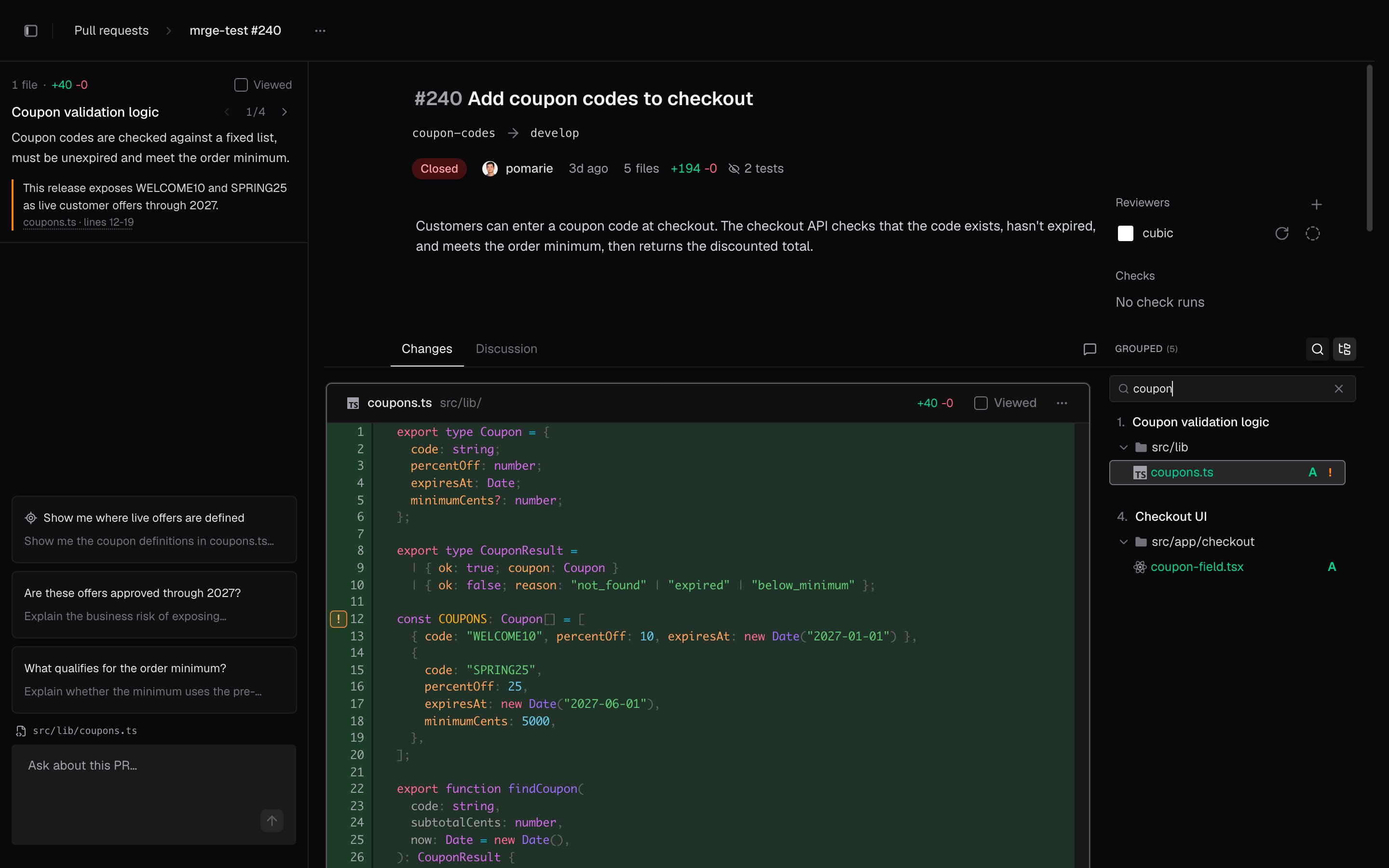
Get oriented
The PR header shows the description, reviewers, and status. Below the header are two tabs:- Changes: Read the diff, navigate files, and leave inline comments.
- Discussion: Follow the PR’s conversation, reviews, and activity.
[ to open the PR below and ] to open the one above.
On a phone, open the file list with Files at the bottom of the screen, and the PR actions from
⋯ at the top.
Read the diff
Use the file list to jump between files. Choose Grouped to follow related changes together, or Tree to browse folders. The list follows the file you’re reading. When you know which file you need, search the file list: the arrow keys step through matching files, andEnter opens one.
Cmd-click or Ctrl-click the import. The file opens
read-only in a panel over the page, at the PR’s revision. Press Esc to close it.
Open Diff settings from the PR actions menu (⋯). There you can switch between unified and
split layouts, change the code theme, expand unchanged lines, or hide test files.
When you finish reading a file, mark it Viewed. To track your progress through a larger PR,
you can also mark a whole group Viewed.
Review new pushes
To open Compare versions, click the version label at the top of the file list. Then choose the range you want to read:- All changes: The full PR diff against its base.
- Since previous push: Changes from the latest update.
- Since your last review: Changes since the version you last submitted a review on.
Leave comments and suggestions
To leave an inline comment, click the comment button beside a line number. To comment on several lines, select the range first, then click the comment button. For feedback about the whole file, choose Add file comment from the file’s ⋯ menu. After you write a comment, choose one of these options:- Add to review holds it with your other pending comments until you submit your review.
- Post immediately publishes it to GitHub right away. Once your review has pending comments, this option is unavailable, so add each new comment to the review.
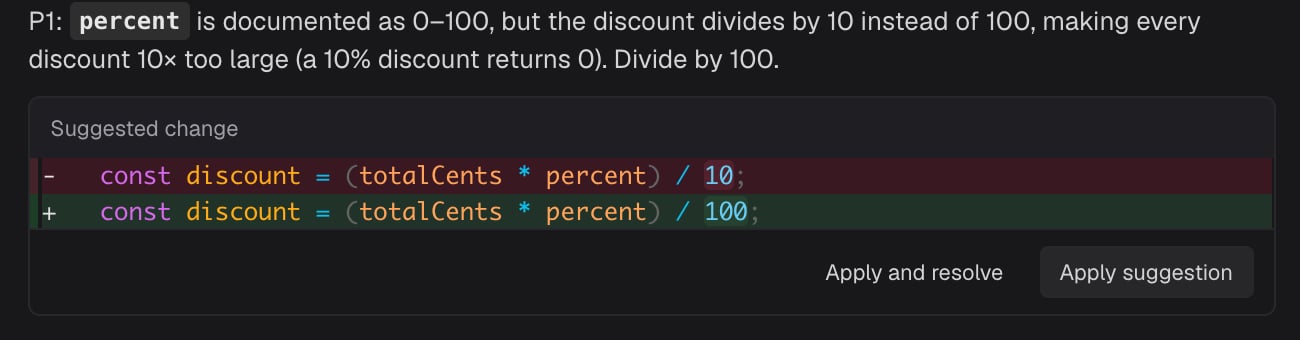
suggestion block to an inline
comment:
Follow discussions
Read threads next to the diff. Beside the Changes and Discussion tabs, the button that counts open threads, such as 3 open, lists every thread. Filter it to bots or people, open a thread to jump to the code it refers to, and find resolved and outdated threads collapsed at the bottom. Reply in a thread, and resolve it once the feedback is addressed. The Discussion tab shows the PR’s conversation and review activity in one timeline. From a comment on code, you can jump to its lines in Changes.Submit your review
- Open Review. If you have pending comments, open Finish review instead.
- Choose Approve, Comment, or Request changes.
- Add an overall message, then submit. Comment and Request changes need a message unless you have pending comments. Approve doesn’t need one.
Check and merge
Open the Merge menu at the top right to see reviews, checks, and any conflicts. If you have merge permission on the repository, you can merge from there once the PR is ready. On a branch that requires a merge queue, the button reads Add to merge queue, and the queue merges the PR with the method set in the branch’s rules. While the PR waits, the menu shows Queued to merge, and View merge queue opens the queue on GitHub. For a PR in a GitHub stack, the merge includes every PR below it that hasn’t merged yet. The button shows how many PRs that is, as in Squash and merge stack with a3 badge. Auto-merge isn’t available for stacked PRs.
The inbox also groups PRs that build on each other’s branches. Until they’re a GitHub stack, merge
them one at a time, starting with the one at the bottom. To merge them as a group,
turn them into a GitHub stack
first.
To view the PR on GitHub, choose Open in GitHub from the PR actions menu. If the PR has a
Vercel preview, Open preview deployment takes you to it.
Keyboard shortcuts
To see the shortcuts for the current page, open Keyboard shortcuts from your user menu. In a diff,J and K move between files, Space marks the active file viewed, and R opens the
review menu.
See Keyboard shortcuts for a short reference and PR search.